Priority Routing is an Enterprise feature that allows certain calls to be prioritized above other calls in a queue. When a call is tagged as a 'VIP' call, it will automatically be placed ahead of any other non-VIP calls in the queue. This allows for particular priority calls to experience a shortened wait time by routing the calls to the next available agent ahead of other non-priority calls.
Use the below quick links to learn more
Configuring Priority Calls
Administrators or Supervisors can now configure Priority calls as 'VIP' on the number level or at the IVR selection level (Administrators can customize the level of access by granting permission using Role-based access control). Any call that comes into a number that is configured as VIP or any time a caller selects an IVR option that is configured as VIP, that call will be tagged as a priority and be placed in the queue behind any other priority calls and ahead of all non-priority calls.
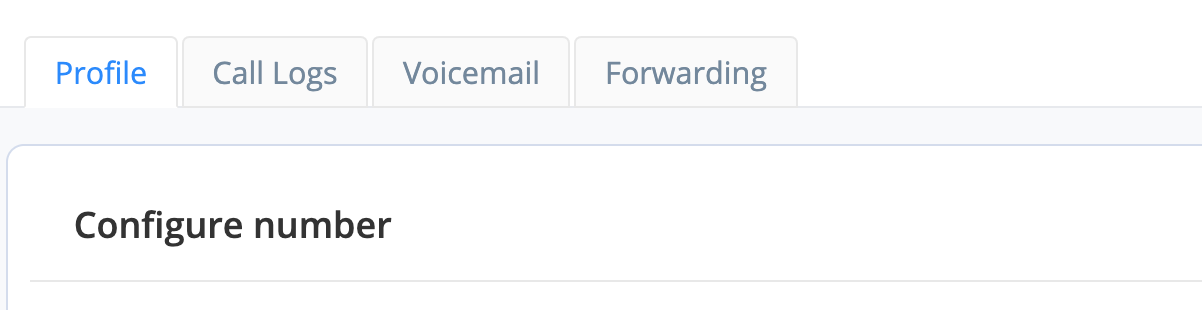
In the Number Profile, the VIP toggle can be enabled at the bottom of the Configure number section:

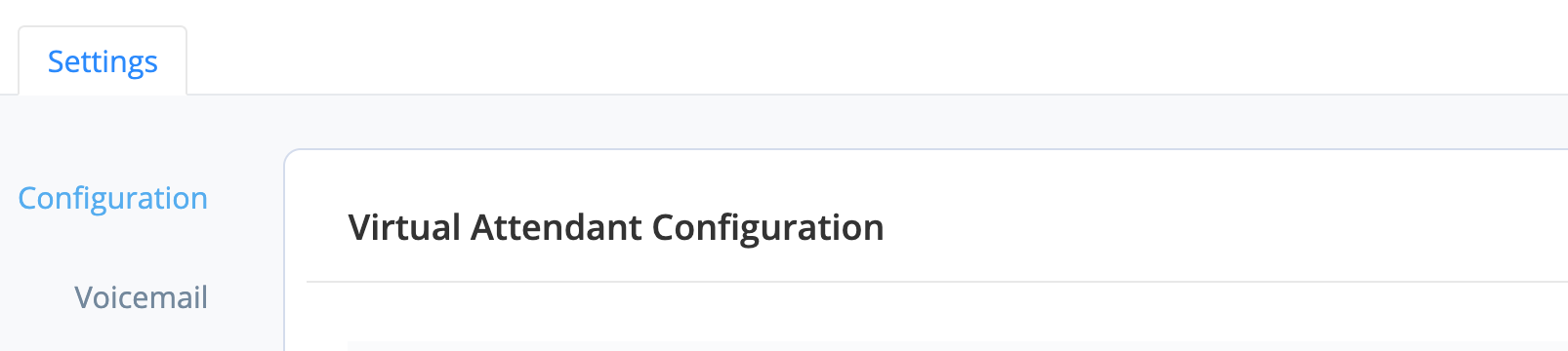
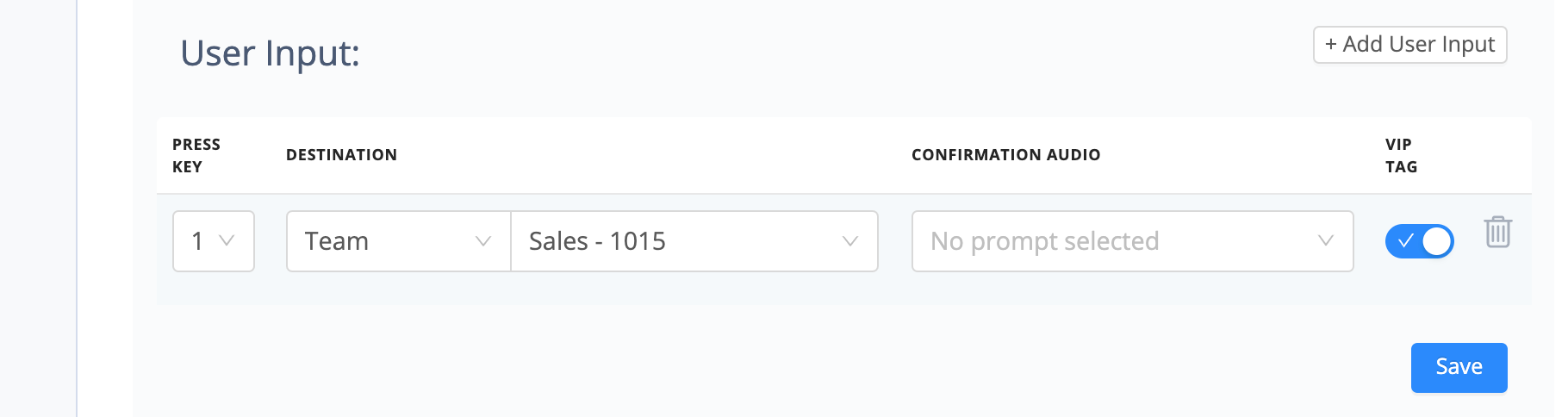
In the IVR 'Virtual Attendant Configuration', each option under the User Input can have the VIP toggle enabled:
Once a call is tagged as VIP by one of the above configurations, the call will remain a priority call for the rest of the call flow. There are no additional considerations for the number of VIP configurations a call flows through. Whether it's tagged at the Number level, IVR selection level, or both, all priority calls are treated the same and prioritized in the order they've reached the queue.
Monitoring and Measuring Priority Calls
Once Priority calls have been configured, they can be monitored and measured in the Live Teams dashboard and in at Teams report in Analytics. In the Live Teams dashboard, the VIP tag will be assigned to any priority call that is waiting in the queue:
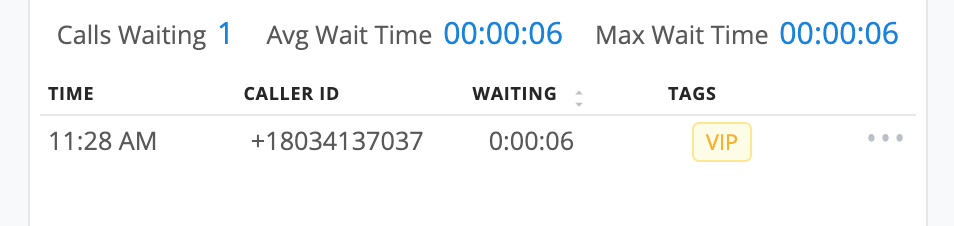
Note: VIP calls will not necessarily show above/below existing calls in the Live Dashboard. While you will be able to see the VIP call tagged as VIP as shown above, if you're sorting on the Wait time descending (the default behavior) then you will see the VIP call appear below other calls which have been waiting longer even though it will be answered first.
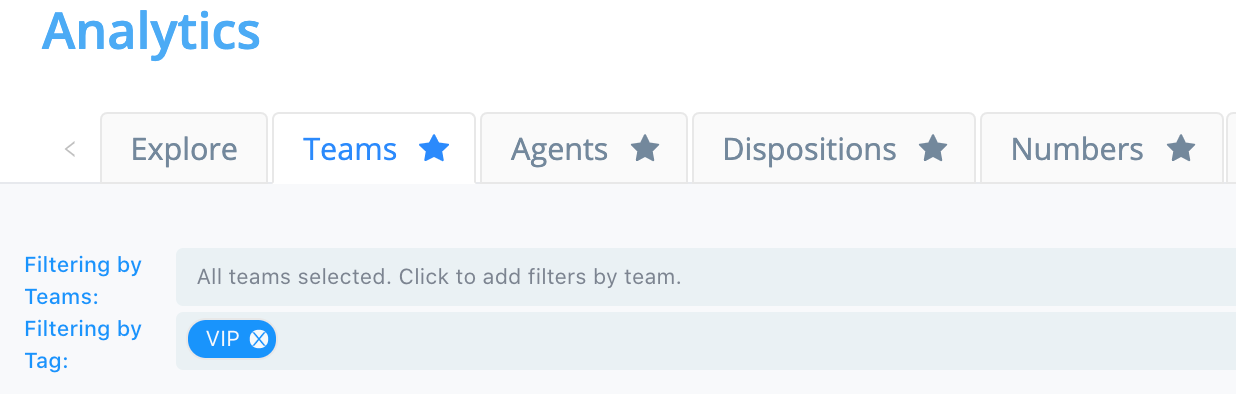
To see metrics for priority calls, add the VIP tag to the 'Filter by Tags' section of an Analytics report: